What your iPhone checks when you swipe up
Oct 31, 2026
Three buttons vs. one bar
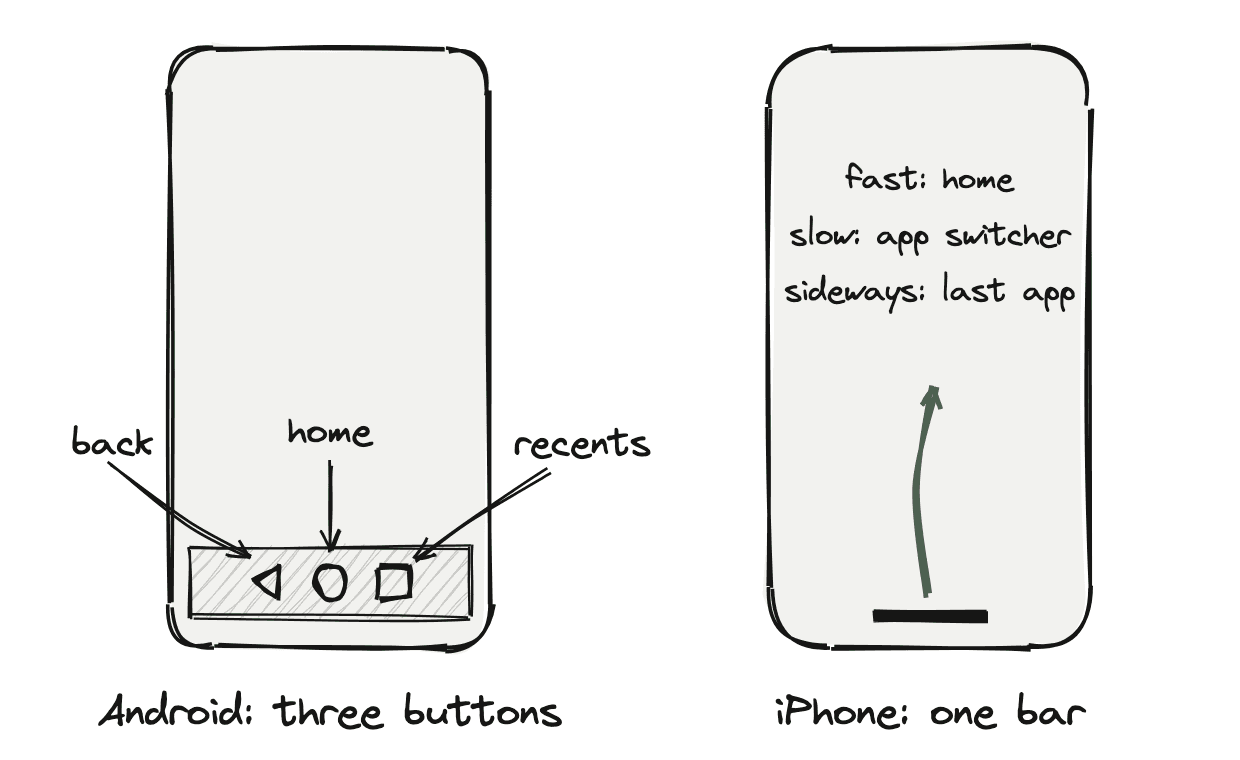
Apple is really good at making things feel obvious, and the home gesture is my favorite example. Android's classic setup, which you can still turn on in its settings, is three buttons along the bottom: back, home and recents. One button, one job.
The iPhone has one little bar at the bottom of the screen. You can't press it. You swipe it, and what happens depends on how you swipe. A quick flick goes home, a slower swipe that stops partway opens the app switcher, and a sideways swipe along the bottom jumps to your last app.
So where's the line?
I do this about a hundred times a day and almost never get the one I didn't want. So what counts as fast? How long is a pause? Is there a timer in there somewhere?
Peeking inside iOS
The home screen and the app switcher are run by an app called SpringBoard. Xcode's iOS simulators run a real copy of it on a Mac, so you can look inside without a jailbroken phone.
A tool called ipsw lists every class inside SpringBoard and turns its machine code back into readable instructions. Two finds did most of the work. One class holds about 60 tuning knobs with labels like "Pause Velocity For Switcher", because Apple has an internal tool for adjusting them live. Another class makes the decision on every touch and writes down why. My favorite of its reasons is AppSwitcherByPausing.
The commands, if you want to try it
SB=".../iOS 26.5.simruntime/.../PrivateFrameworks/SpringBoard.framework/SpringBoard"

# A header file for every class
ipsw class-dump "$SB" --headers --output SpringBoard-headers

# Readable instructions for one method
ipsw macho disass "$SB" --symbol "-[SBHomeGestureSettings setHomeGestureTuningDefaults]"
The numbers are in millimeters
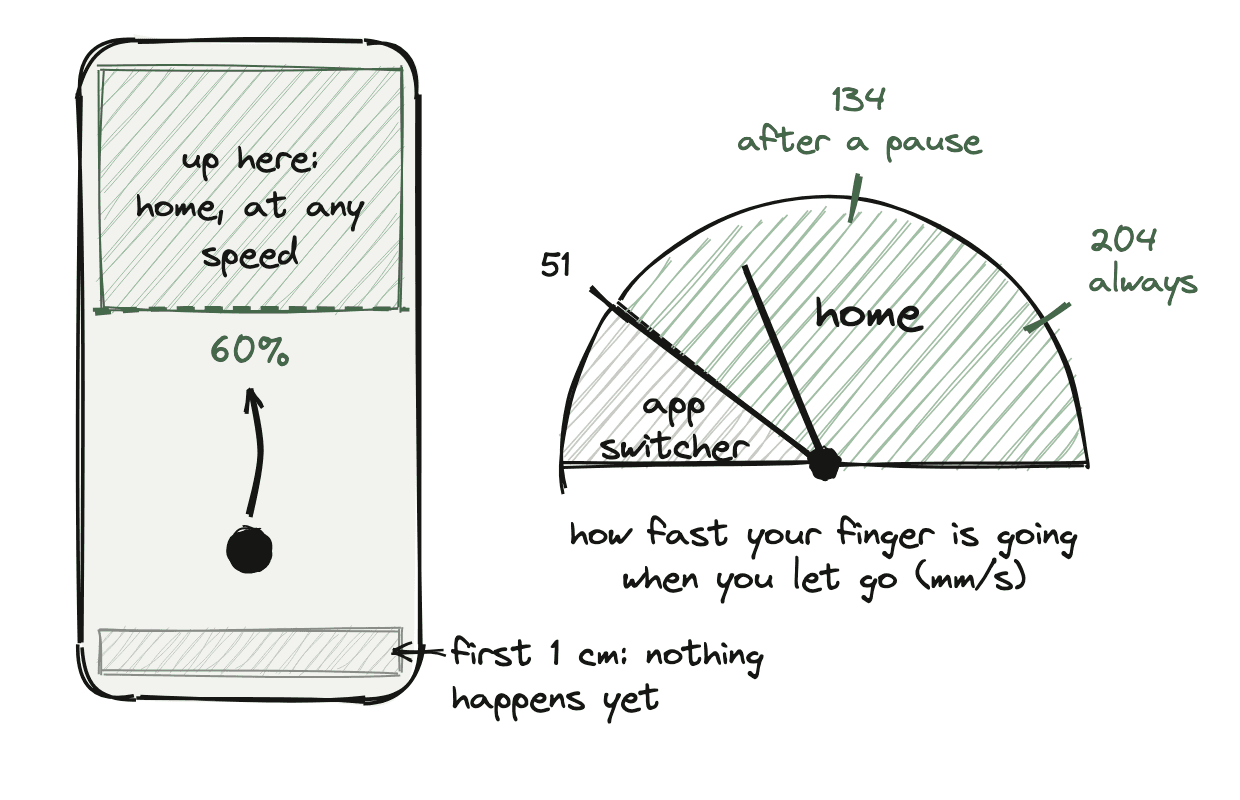
The first numbers I pulled out looked weird: 10, 51, 204. They turned out to be millimeters. Before using them, SpringBoard converts them to screen points with the screen's pixel density:
So Apple tunes the gesture in real-world distance, and a swipe feels the same on every iPhone. Here's how fast those speeds actually are:
| The number | What it does | In real life |
|---|---|---|
| 1 cm | Your finger has to get this far above the bottom edge before anything counts | about the width of a fingernail |
| 51 mm/s | Slower than this and you've paused, so you get the app switcher | 2.8 seconds to cross the screen |
| 134 mm/s | What home needs after you've paused | about 1 second |
| 204 mm/s | Home, every time | 0.7 seconds |
| 60% | Drag past this and you go home at any speed | a bit past the middle |
51 mm/s is really slow, so "pausing" means nearly stopping.
There's no timer
The speed is your finger's average over the last 1/24 of a second, about 42 milliseconds. Nothing in the decision counts time. A pause is your finger slowing below 51 mm/s, so stopping for a split second does the same thing as stopping for two.
The questions it asks
Every time your finger moves, SpringBoard runs through the same questions from the top and stops at the first yes. When you lift your finger, the last answer wins.
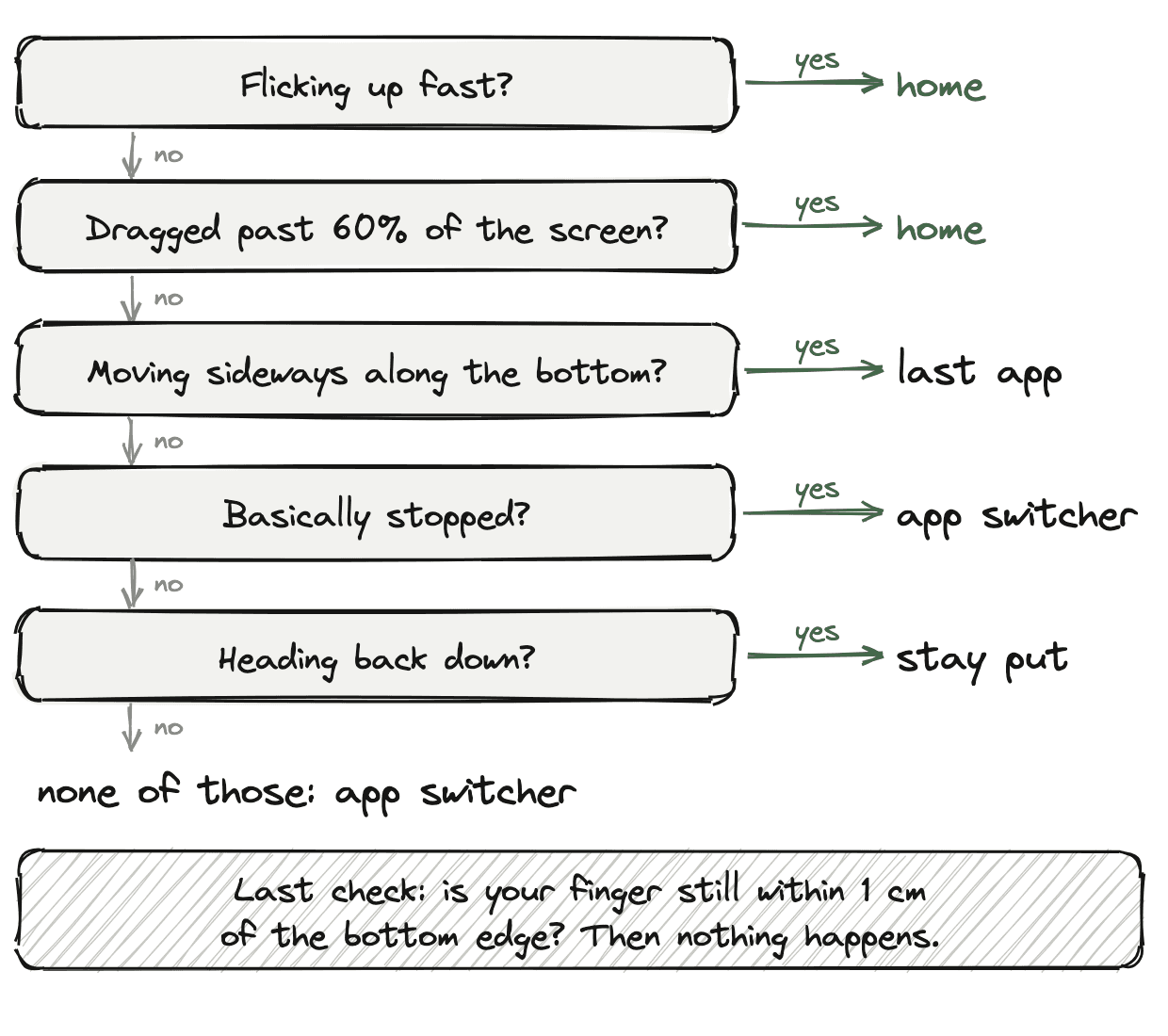
The same thing as pseudocode, with Apple's reason names
if upward speed > 204, or > the line and steep enough:   HomeByUnconditionalOrVerticalMotionVelocityThreshold
else if dragged past 60% of the screen:                  HomeByDistanceThreshold
else if sideways along the bottom:                       PreviousLayoutByArc and friends
else if both speeds under the line:                      AppSwitcherByPausing
else if moving down:                                     CurrentLayoutByMovingDownwardWithinSlope
else:                                                    AppSwitcherByNotFulfillingArcThresholds
then, within 1 cm of the bottom:                         CurrentLayoutByNotTravelingSufficientYDistance
The line moves when you hesitate
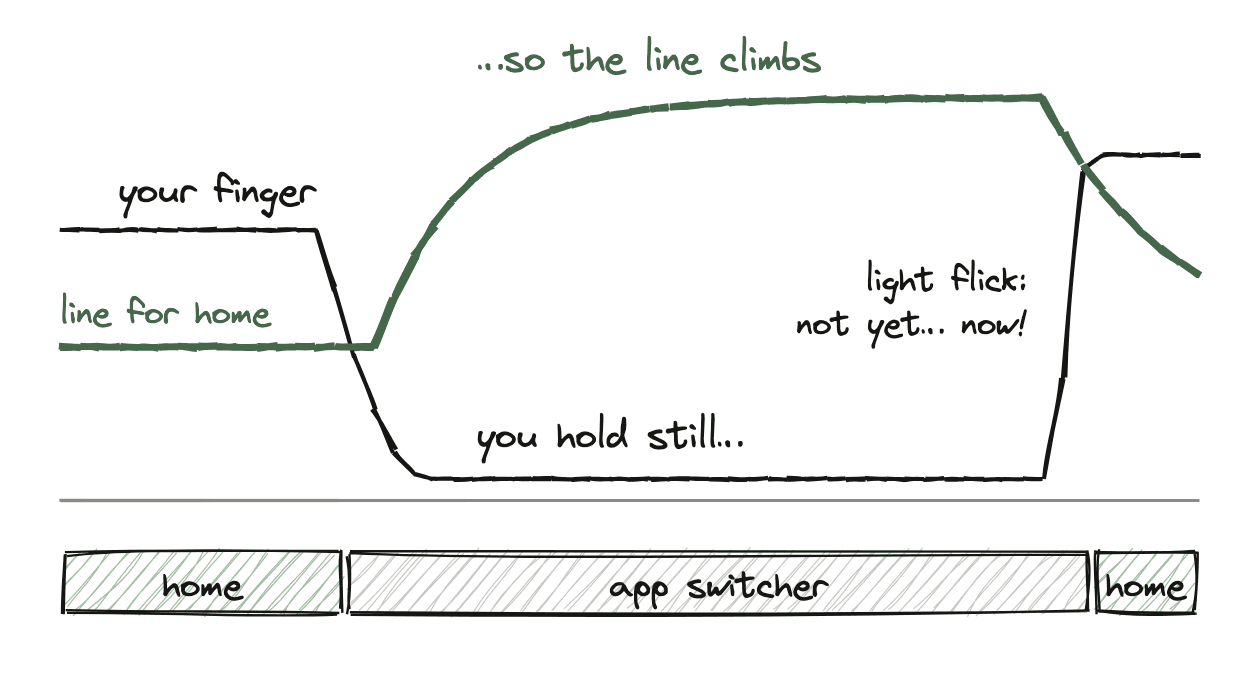
This is my favorite part. The speed you need for home starts at 51 mm/s and doesn't stay there. While you're hovering over the app switcher, it creeps up toward 134 mm/s, getting 20% closer on every touch update. If you slow down sharply on the way up, it jumps straight to 134. Once you start moving again, it slides back down.
So once iOS thinks you want the app switcher, a lazy flick won't change its mind. You have to mean it.
Little things I found along the way
- Touches near the left and right edges are less reliable, so within 3 mm of either side, the app switcher sticks around for up to 10 extra updates.
- During setup on a new phone, a swipe that doesn't go home does nothing. Apple's internal name for setup is Buddy, so that reason is
CurrentLayoutInBuddyBecauseHomeFailed. - One reason name ends in a question mark:
CurrentLayoutInsteadOfArcBecauseAtLeastOneGestureNotCompleted? - iPads get bigger numbers: 12 mm instead of 10, 80% instead of 60%, and the line can climb to 308 mm/s.
Try it
- Drag up really slowly toward the top without stopping. You'll go home without ever speeding up.
- Swipe up, hold still for a moment, then do a light flick. You'll stay on the app switcher.
- Do the same light flick without holding first. Home.
Source: SpringBoard.framework (source version 4557.5.7.101) from the iOS 26.5 simulator runtime, read with ipsw.